A tour of Notes for Android
A screen-by-screen look at Home, Search, Archive and Settings.
Notes has four tabs along the bottom. Here is what each one is for.
Home
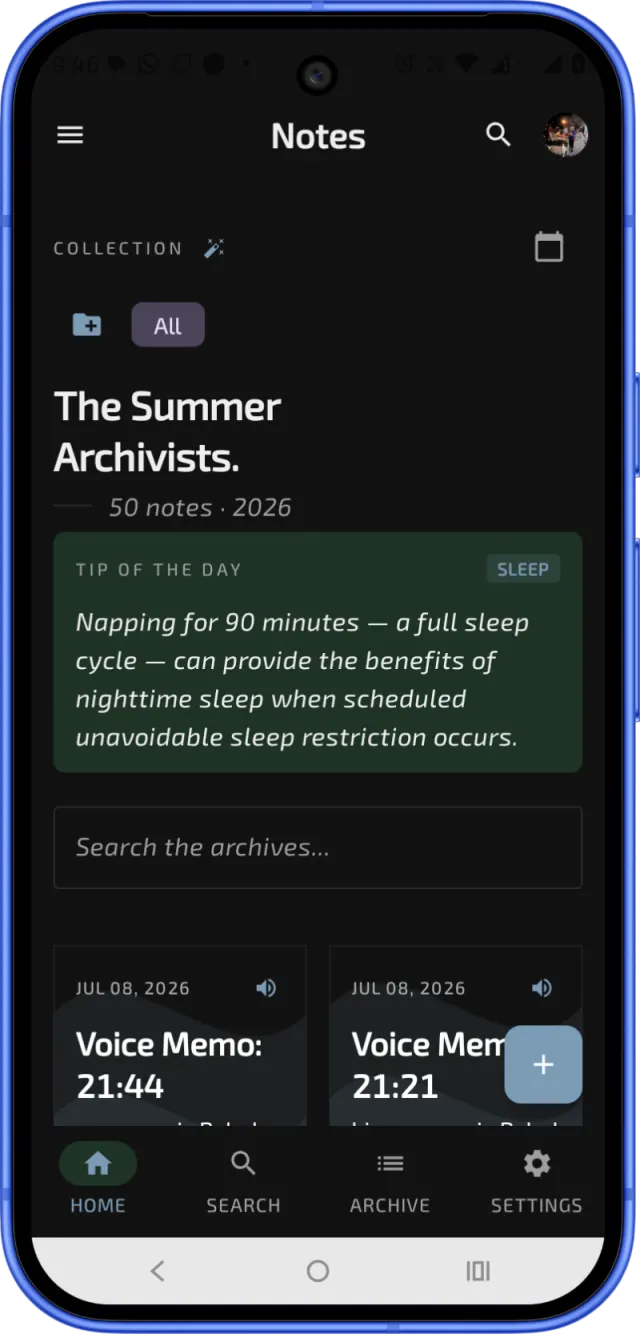
Home is where your notes live. At the top you will find the Magic Sort wand, a Filter by date calendar, a Create Folder button and folder chips such as All, Personal, Work and Ideas. A short tip of the day sits above your notes.
The round + button opens a menu with Recording, Drawing, Scan and Note. Voice notes carry a Play Note button, and a star marks favourites. Locked notes show as Protected Note.
Search
Search is a single field that says "Speak or type your thought...". Use it to find a note by what is in it. If you have scanned handwriting, the text from the photo is searchable too.
Archive
Archive is a timeline of your writing. It shows the current volume, and numbers such as your total characters and active days.
Settings
Settings is where you shape the app: theme, list layout, time format, recording waveform, text size and card height. It also shows Local Ink, a meter of how much storage your notes use, and has Export All Notes.
Inside a note
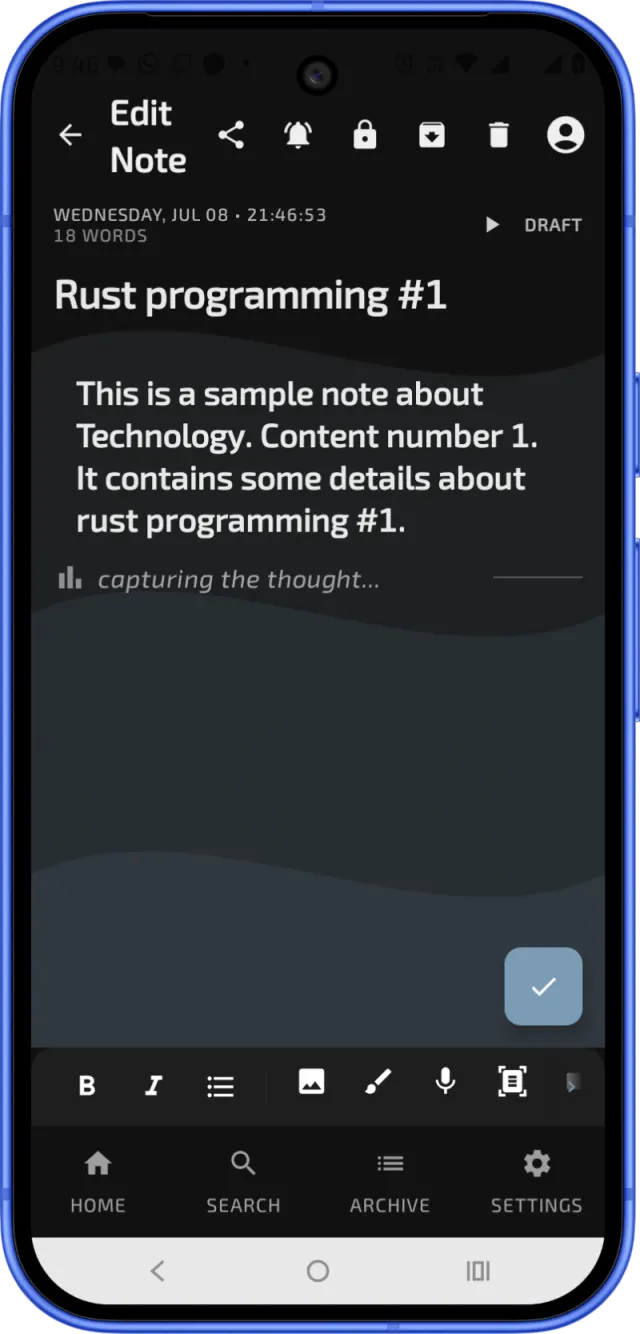
Open any note to find Share, Reminder and Lock in the top bar, and a formatting toolbar along the bottom. Swipe that toolbar left for Translate, Magic Format and Summarize.