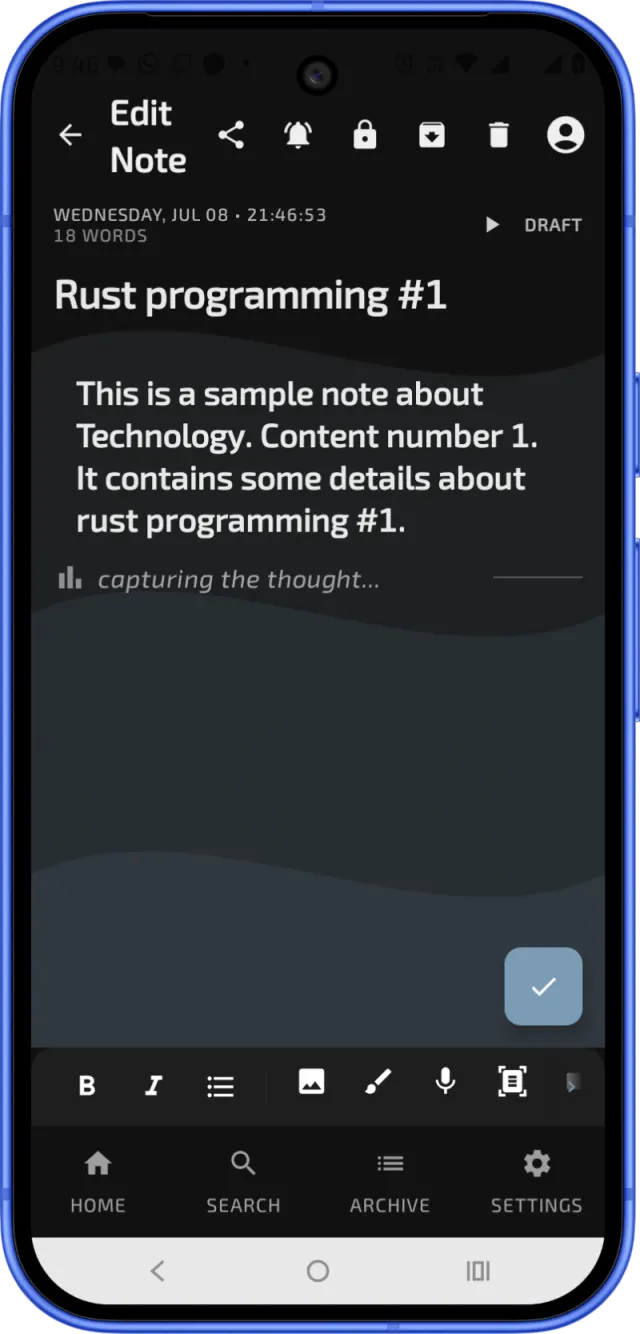
How to translate or summarize a note in Notes for Android
Find the extra actions hidden at the end of the editing toolbar.
Notes keeps some of its most useful actions out of the way. They are at the far end of the editing toolbar.
Steps
- Open a note that already has some text in it.
- Look at the toolbar above the bottom tabs. It starts with Bold, Italic and List, then Image, Draw, Record, Scan and Video.
- Swipe the toolbar to the left. The extra actions appear: Translate, Magic Format and Summarize.
- Tap the action you want.
When to use each
- Translate is for a note written in one language that you need in another.
- Summarize is for a long note when you only need the short version.
- Magic Format tidies how a note is laid out.
Tip
Run these on a copy if the note matters, so you keep your original wording. Duplicate the text into a new note first.