How to create a note in Notes for Android
Add a new note from the Home screen: tap +, choose Note, write, and save.
A new note takes four taps and a few words. This guide walks through it on Android.
Before you start
Install Notes from Google Play and open it. You start on Home, where your notes and folders live.
Steps
- Tap the round + button at the bottom right of Home. A menu opens with four choices: Recording, Drawing, Scan and Note.
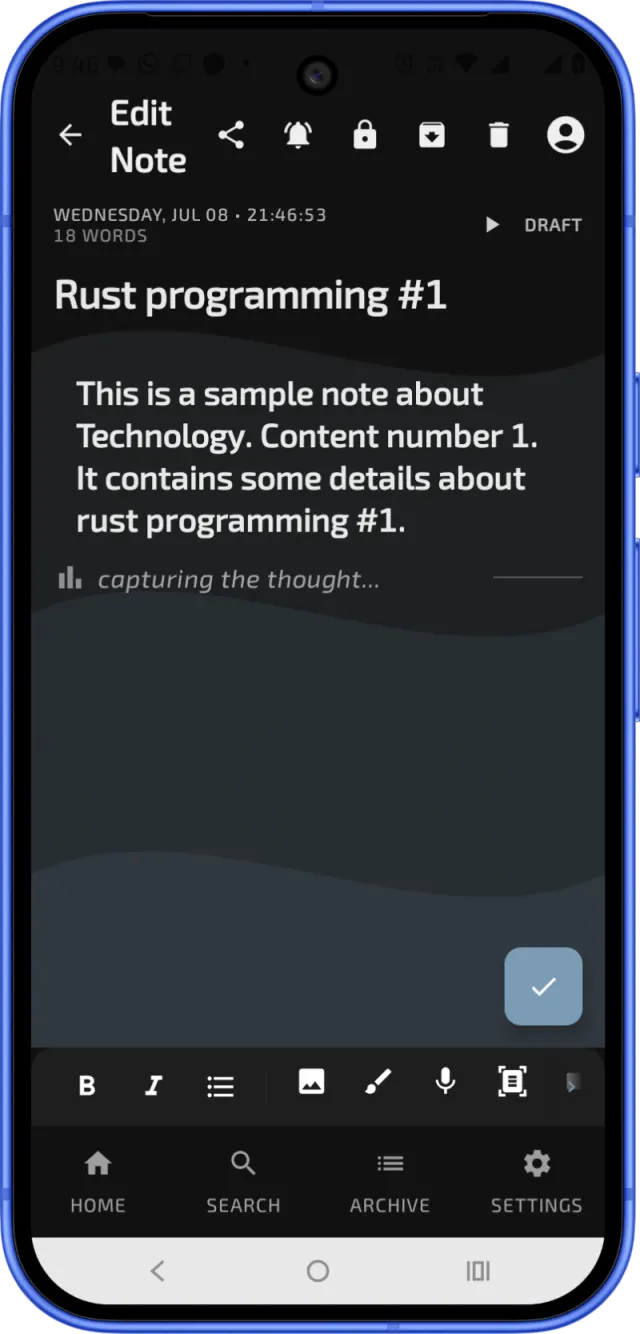
- Tap Note. A blank note opens. The title field says "Untitled Thought" and the body says "Begin your narrative here...".
- Type a title, then write your note. The date and a live word count sit above the title.
- Tap the round Save button (the check mark) at the bottom right.
Your note now appears on Home.
Good to know
- The bar above the bottom tabs has Bold, Italic and List. Swipe it left to reach Image, Draw, Record, Scan and Video.
- The star at the top right marks the note as a favourite.
- The top bar also holds Share, Reminder and Lock, covered in the guides below.