How to lock a note in Notes for Android
Protect a private note so it opens only with your biometrics.
Some notes are private. Locking a note keeps it behind your biometrics.
Before you start
Set up fingerprint or face unlock in your Android settings first. Notes uses your phone's biometrics to unlock protected notes.
Lock a note
- Open the note you want to protect.
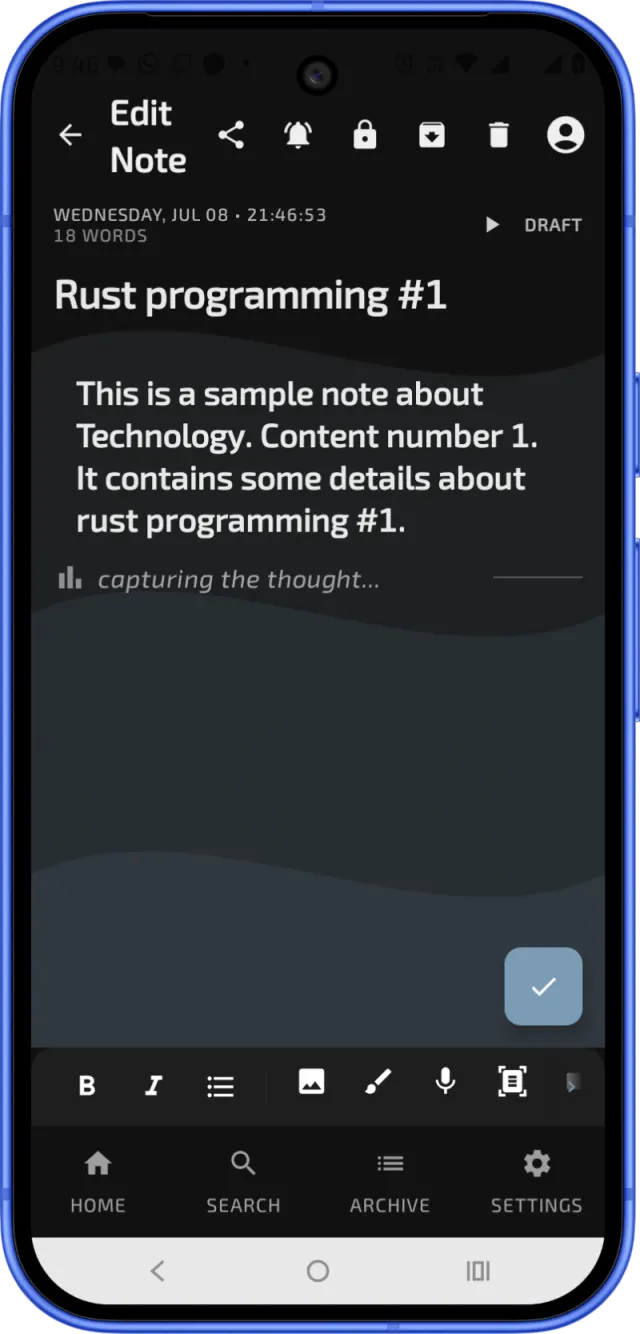
- Tap the Lock icon in the top bar, next to Share and Reminder.
- Tap Save to keep the note.
How a locked note looks
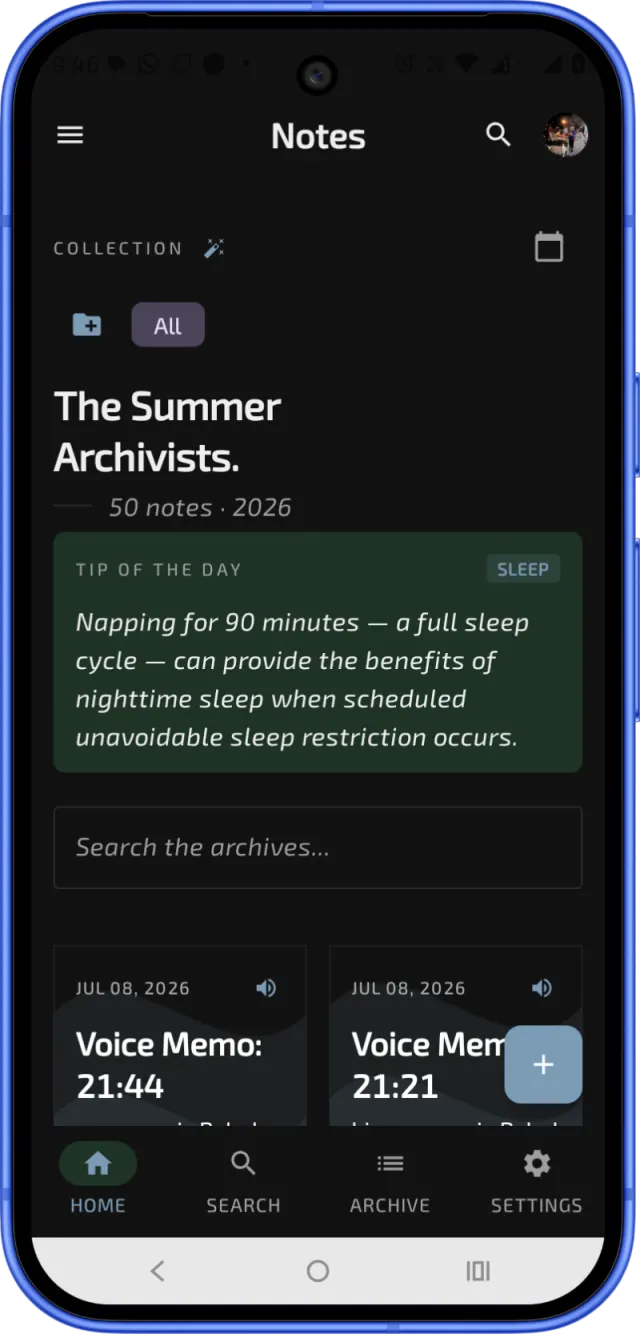
On Home, a locked note shows as Protected Note, with the line "This note is encrypted and locked. Tap to unlock." Its contents stay hidden until you unlock it.
Open it later
- Tap the locked note on Home.
- Unlock with your biometrics.
Good to know
- Lock only the notes that need it. Everything else stays quick to open.
- Notes is offline-first, so your notes are kept on your device.