How to turn a photo of handwriting into text in Notes for Android
Scan a page or whiteboard photo so the words become text you can search and edit.
Handwritten pages and whiteboards are hard to search. Scan fixes that: pick a photo, and Notes reads the text into the note.
Before you start
Scan opens your phone's photo picker, so take the photo first with your camera app. Make it a good one:
- Use even light and avoid shadows across the page.
- Hold the phone square to the page so the lines are straight.
- Fill the frame with the writing, and keep the page flat.
Steps
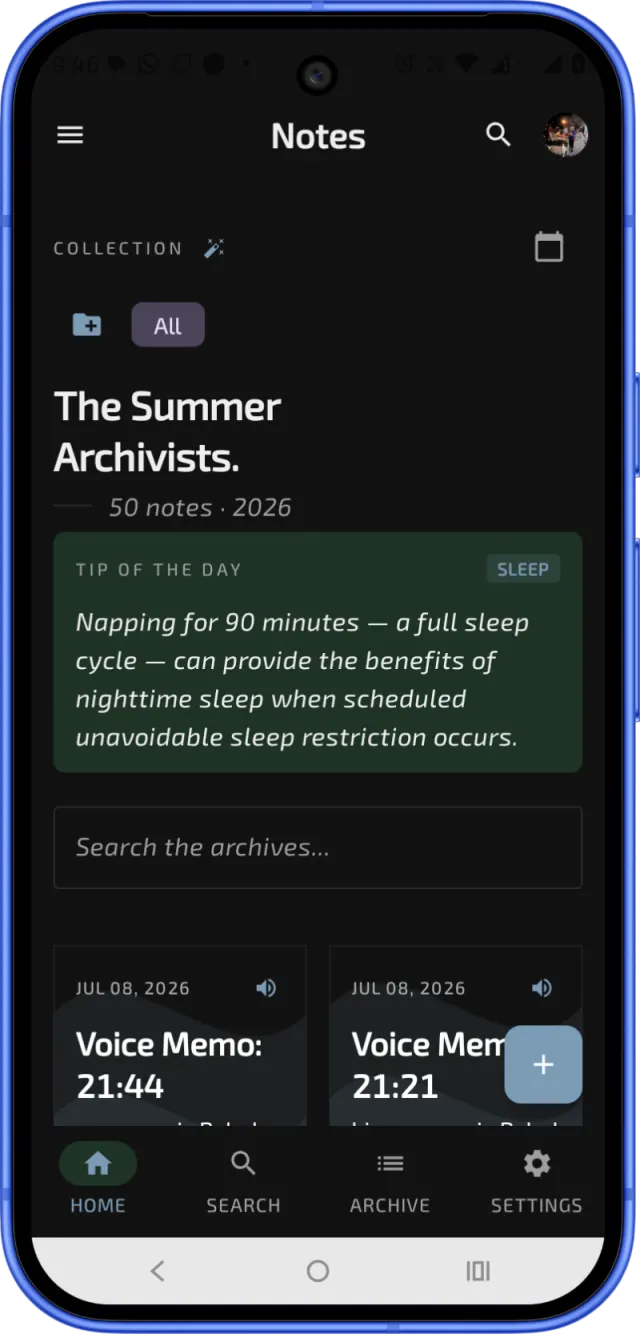
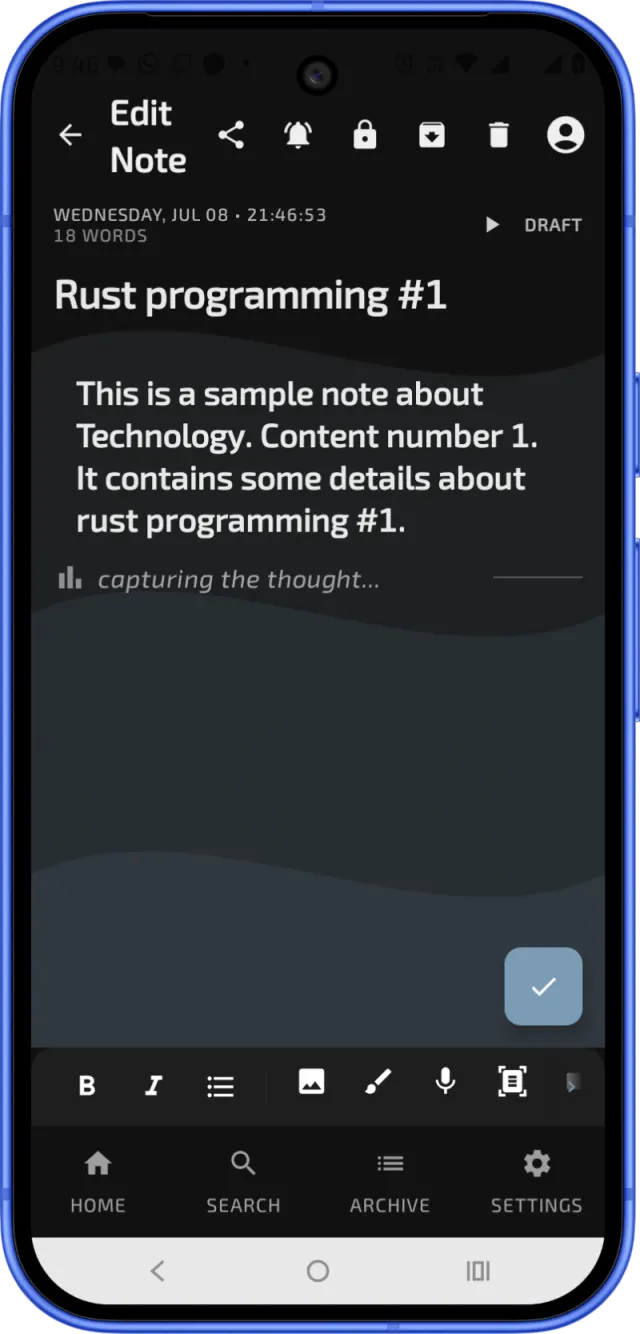
- Tap the round + button on Home, then tap Scan. You can also open a note and tap Scan in the toolbar above the bottom tabs.
- Your photo picker opens. Choose the photo of the handwriting or whiteboard.
- Wait a moment for Notes to read the photo.
- Check the text, fix anything it misread, and tap Save.
After scanning
The text is part of the note, not a flat picture. You can edit it, add to it, and find it later with Search.
If a word comes out wrong
Neat, dark handwriting on plain paper reads best. If a page gives you trouble, retake the photo with better light and try again.